Troubleshooting
Quick checklist
Before reading further — try these three things. They fix 90% of all issues:
| Check | How | |
|---|---|---|
| 1 | Phone and console on the same Wi-Fi | No VPN, no mobile data, no guest network |
| 2 | Restart both your phone and console | Full restart — not just sleep mode |
| 3 | Restart the server in the BedrockConnect app | Stop → Start again |
We know it sounds obvious. But a full restart of your phone + console + the server in the app fixes the vast majority of problems. Do this before anything else.
Server doesn't show up in the world list
If the quick checklist didn't help, work through these:
- iOS
- Network issues
- Switch
Local Network permission
When you first use BedrockConnect, iOS may show a popup asking to connect to devices on your local network. You must tap OK. This popup doesn't always appear — but the permission must be enabled either way.
If you accidentally denied it or never saw the popup:
iPhone Settings → scroll down to BedrockConnect → enable Local Network
Then restart the app.
Your router might be blocking it
Some routers prevent devices from talking to each other. Check for:
| Setting | Fix |
|---|---|
| AP isolation / Client isolation | Must be off |
| Guest network | These isolate devices — use your main Wi-Fi |
| 2.4 GHz vs. 5 GHz | Some routers treat these as separate networks — put both devices on the same band |
| Corporate / school / hotel Wi-Fi | Almost always blocks local connections — use a personal hotspot or home network |
DNS settings
Your Switch's Primary DNS must be set to your iPhone's current IP address. This IP can change — always double-check it in the BedrockConnect app before setting the DNS.
After changing DNS: full restart of the Switch (hold power → Restart, not sleep).
Featured Server doesn't redirect
Make sure BedrockConnect is running on your iPhone (app open, server started), that Switch Support is enabled in the app settings, and try a different Featured Server (e.g. Lifeboat instead of Hive).
Errors when joining a server
If you get an error message when trying to join a server — like "Unable to connect to world", a disconnect, or a kick — this almost always means the problem is with the server, not with BedrockConnect.
Here's why: by the time you see the error, BedrockConnect has already done its job. It redirected you to the server successfully. The error you're seeing comes from the server itself.
This applies to every error you see after BedrockConnect sends you to a server — connection errors, kicks, "blocked" messages, crashes, missing packs. BedrockConnect is not a proxy and is no longer involved at that point. Only the server owner can fix it.
Try joining The Hive or another Featured Server through BedrockConnect. If that works, BedrockConnect is fine — the problem is with the specific server you're trying to join.
Common causes:
| Cause | Fix |
|---|---|
| "Unknown host" | The IP address or domain you entered is wrong or doesn't exist. Double-check the server's IP and make sure you typed it correctly — this is not a BedrockConnect issue |
| Server is offline | Check the server's Discord or website |
| Server is full | Wait and try again |
| Version mismatch | Update Minecraft — BedrockConnect always supports the latest version |
| Banned on the server | Contact the server's support, not BedrockConnect |
| Server is broken or crashing | Nothing you can do — wait for the server owner to fix it |
BedrockConnect currently supports these Minecraft Bedrock versions:
| Version | Status |
|---|---|
| 1.26.50 | Current stable |
| 1.26.45 | Compatible |
| 1.26.40 | Compatible |
| 1.26.30 / 1.26.35 | Compatible (same protocol) |
| 1.26.20 | Old |
| 1.26.10 / 1.26.13 | Old |
| 1.26.0 and older | Old |
Make sure your Minecraft is up to date. Important: not every server supports the latest version — if a server is still on an older version, you'll need to wait until the server updates.
Resource pack problems
| Problem | Solution |
|---|---|
| Pack doesn't load | Clear the server pack cache and rejoin |
| "Incompatible packs" error | Clear cache, restart Minecraft, then rejoin |
| Wrong format | Only .zip / .mcpack for Bedrock Edition. Java packs won't work |
| Lag or crashes | Pack resolution too high for your console — use a lighter pack or subpack |
How to clear the server pack cache
Sometimes Minecraft holds on to an old server pack and your texture pack won't load properly. Clearing the cache forces Minecraft to re-download the pack from BedrockConnect.
- PlayStation
- Xbox & Switch
- Open Minecraft on your PlayStation
- Go to Settings → Storage → Cached Data
- Delete all the server packs listed there
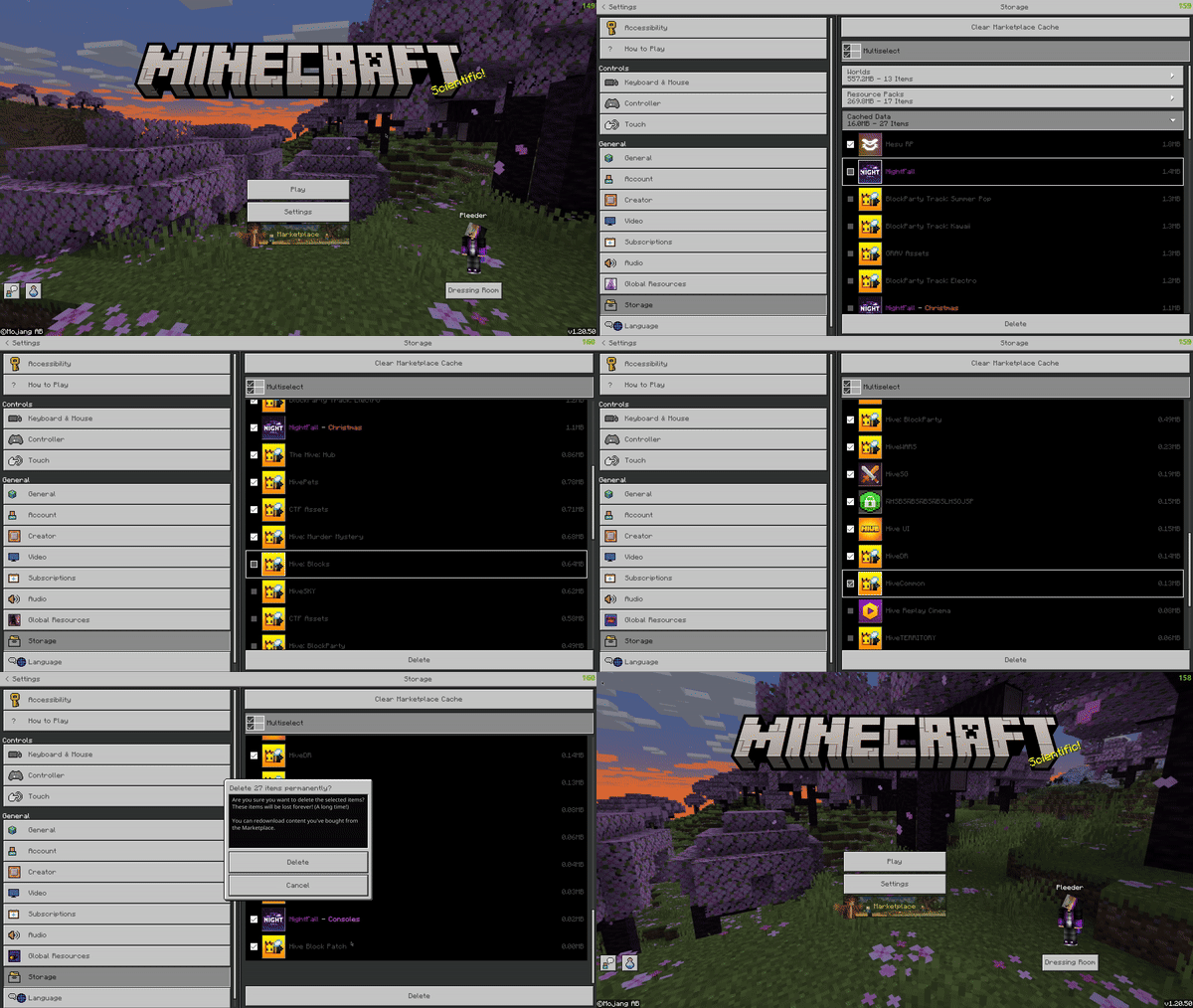
On Xbox and Switch it's much simpler — just close Minecraft completely and reopen it. The server pack cache is cleared automatically when you restart the game.
"Something went wrong"
If you see this error when starting a server:
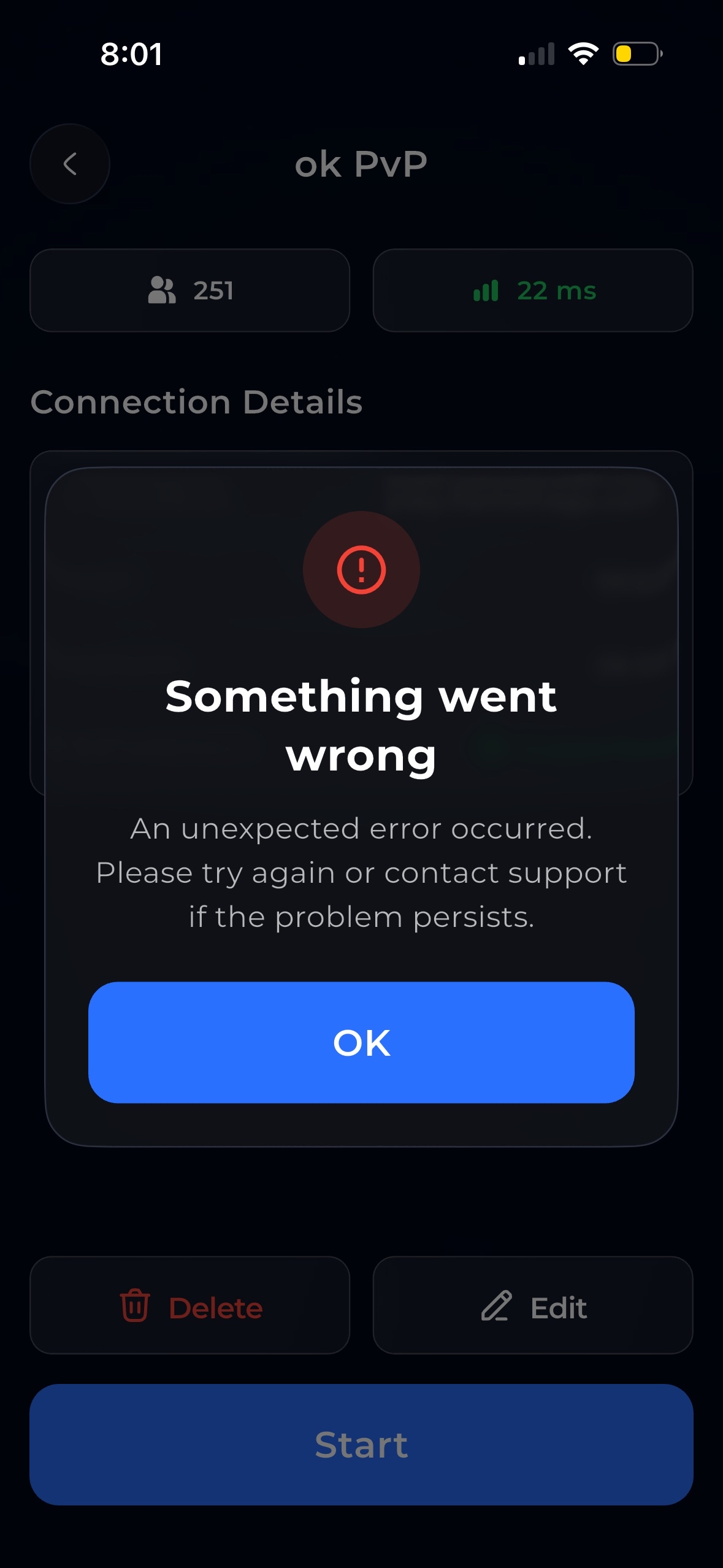
This usually means something is blocking the app from working properly. Try these fixes in order:
- Close the app completely — swipe it away, don't just minimize it. Then reopen and try again.
- Restart your phone — a full restart fixes most cases.
- Close other networking apps — apps like Lunar Proxy, BedrockTogether, or similar tools interfere with BedrockConnect. They cannot run at the same time. Close them completely before using BedrockConnect.
BedrockConnect does not work while apps like Lunar Proxy or BedrockTogether are running. Make sure they are fully closed — not just in the background.
"Ad Load Failed"
If you see this error when tapping "Ad & Start":
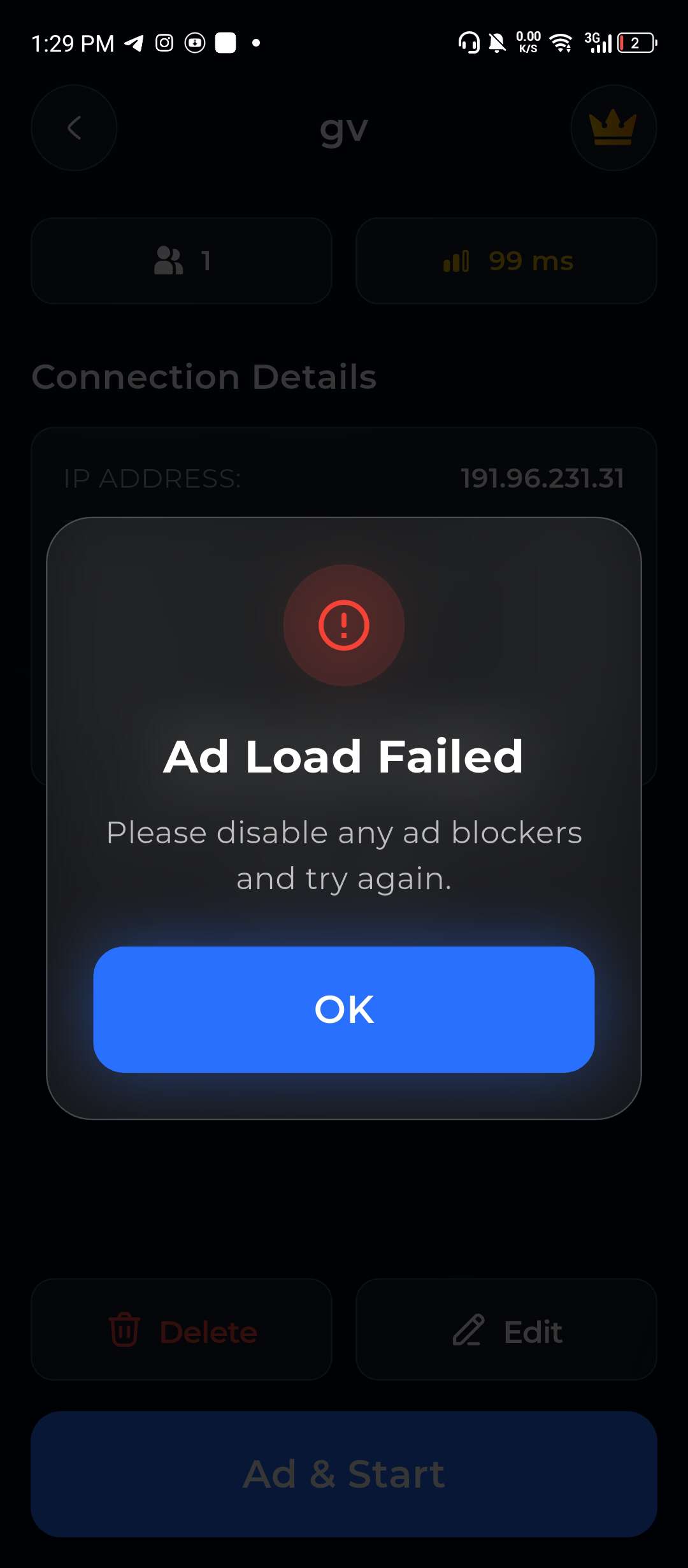
This means the ad couldn't load. The most common causes:
| Cause | Fix |
|---|---|
| Ad blocker active | Disable any ad blocker app or browser-based blocker, then try again |
| VPN running | Turn off your VPN — some VPNs block ad networks |
| Custom DNS (e.g. AdGuard, Pi-hole, NextDNS) | Switch your DNS back to automatic or use 8.8.8.8 (Google) or 1.1.1.1 (Cloudflare) |
| Private DNS on Android | Go to Settings → Network → Private DNS → set to Off or Automatic |
| Firewall or parental controls | Check if something on your network blocks ad traffic |
Settings → Wi-Fi → tap the ⓘ next to your network → Configure DNS → set to Automatic.
Settings → Network & Internet → Private DNS → set to Off. Or: Settings → Wi-Fi → tap your network → Advanced → IP Settings → Static → set DNS to 8.8.8.8.
With Premium, you don't watch ads at all — this error won't happen. If you're seeing this frequently, consider upgrading.
App won't open or crashes
- Update to the latest version of the app
- Restart your phone
- Reinstall the app — your server list is tied to your account, nothing gets lost
None of this helped?
Join the Discord and describe your issue. Include:
- What console you're using
- What phone you're using (Android/iOS)
- What you've already tried
- Any error messages you see
The team and community are active and can usually help quickly.